



Publishing a new webpage doesn’t guarantee that it will appear in Google Search results. Before a page can rank for relevant keywords or attract organic traffic, Google first needs to discover, crawl, and index it.
If your page isn’t getting indexed, it could be due to a simple configuration issue, an unintended technical error, or because Google hasn’t yet determined that the page should be added to its search index. Fortunately, many indexing problems can be identified with a few straightforward checks.
This guide walks through a practical checklist you can follow when a webpage isn’t getting indexed. You’ll learn how to verify whether a page has been indexed, identify the most common technical issues that prevent indexation, and understand the next steps to take if the page still doesn’t appear in Google’s index.
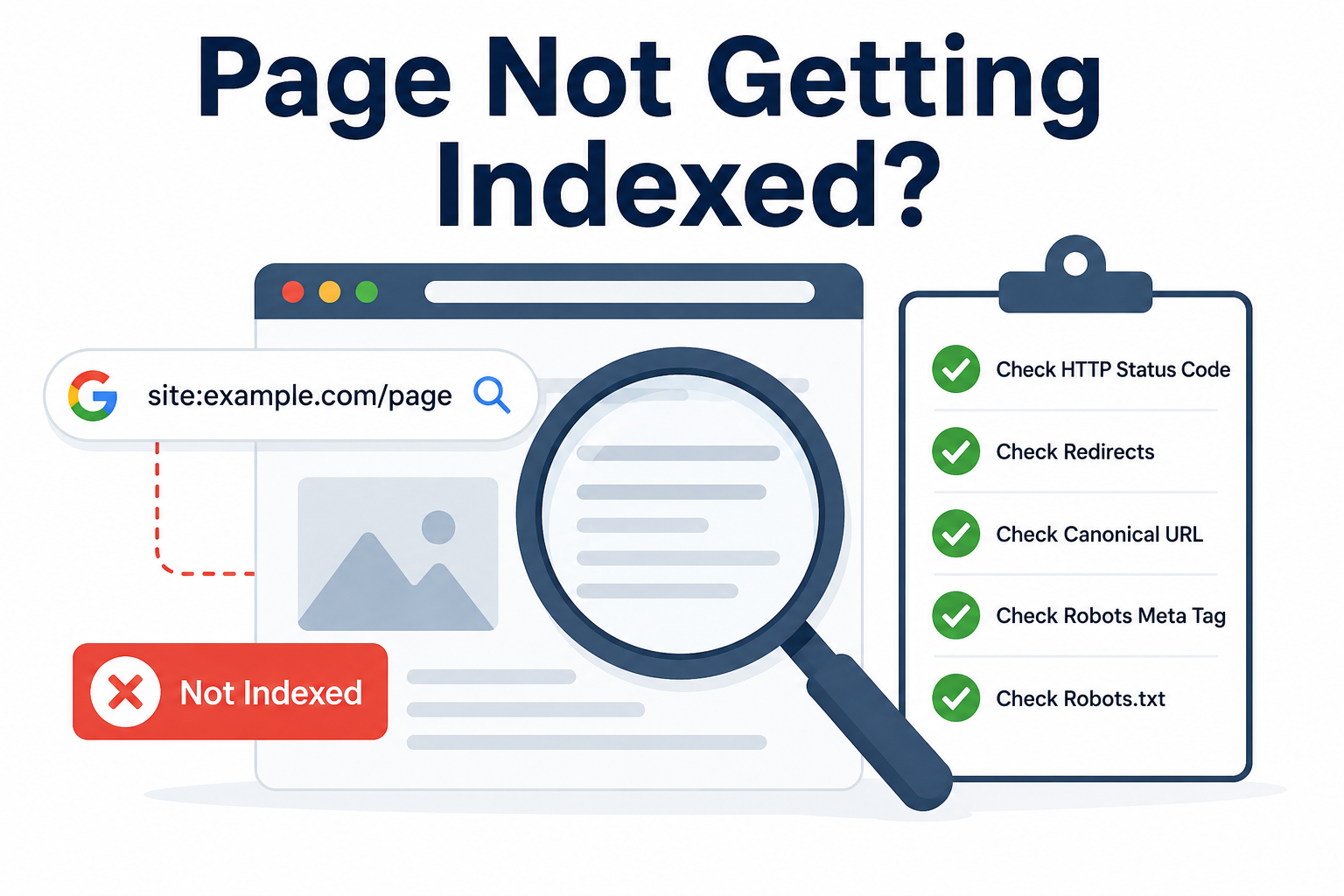
How to Check Whether A Web Page Is Indexed Or Not
Before troubleshooting, it’s important to confirm whether the page is actually missing from Google’s index or is it just your assumption that the page is not indexed while in reality the page is indeed actually indexed in Google.
There are two simple ways to do this.
Primary Verification – Verify Using Google Search
The quickest method is to paste the URL of the page in Google search and see if the page shows up at the top of SERPs (search engine result pages)
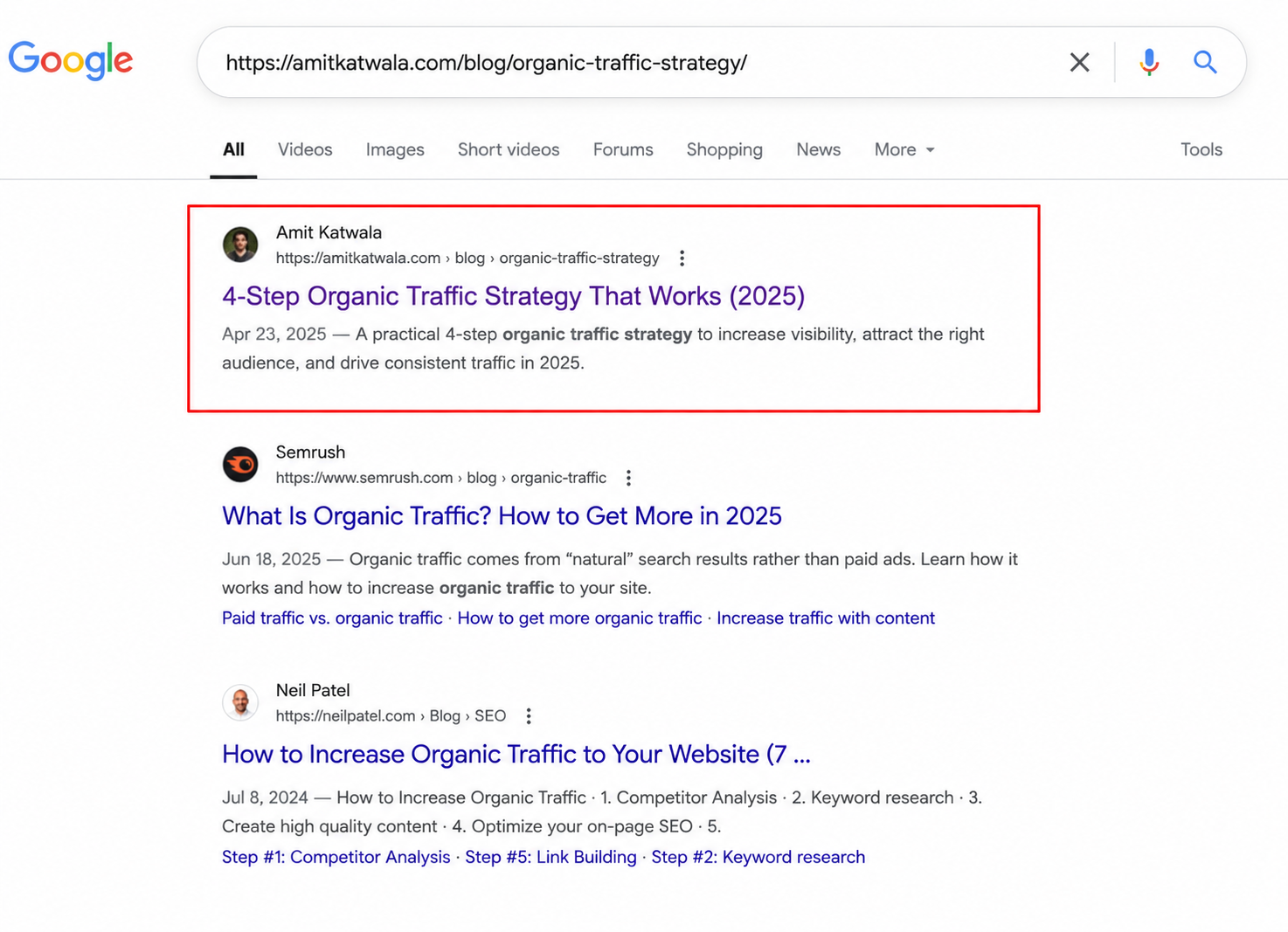
If it does, then your page is already indexed and there is nothing else you need to do since Google (and other search engines) have already indexed the content and it should show up in search engine result pages for relevant keywords and queries.
However, if the page does not show up int he search engine result page, then you have a potential problem. The page is most likely not indexed and we recommend to confirm this hypothesis through a secondary verification method as mentioned below
Secondary Verification – Verify Using Google Search Console
The most reliable method is to use the URL Inspection Tool in Google Search Console.
Enter the page URL into the inspection tool and hit Enter. You will soon see indexation result in Google search console and will be able to conclude whether
- The page has been indexed.
- The page is eligible for indexing.
- Google encountered any crawl or indexing issues.
- The page was last crawled.
- The page has been excluded from indexing for a specific reason.
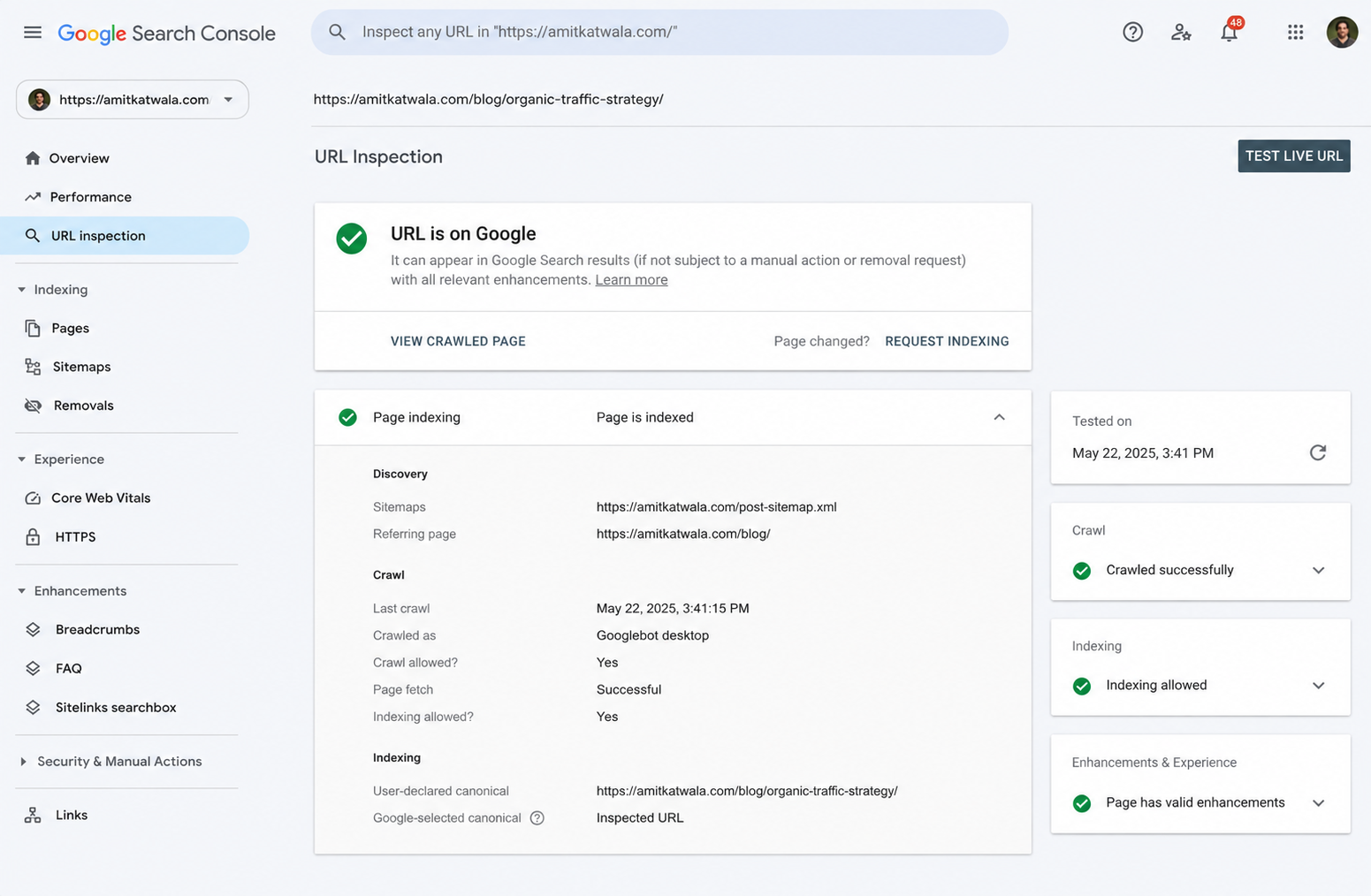
Google Search Console often provides valuable information about why a page hasn’t been indexed, making it the best starting point for further investigation.
7 Point Checklist for Diagnosing Indexing Issues
Once you’ve confirmed that the page isn’t indexed, work through the following checklist to identify the most common technical causes.
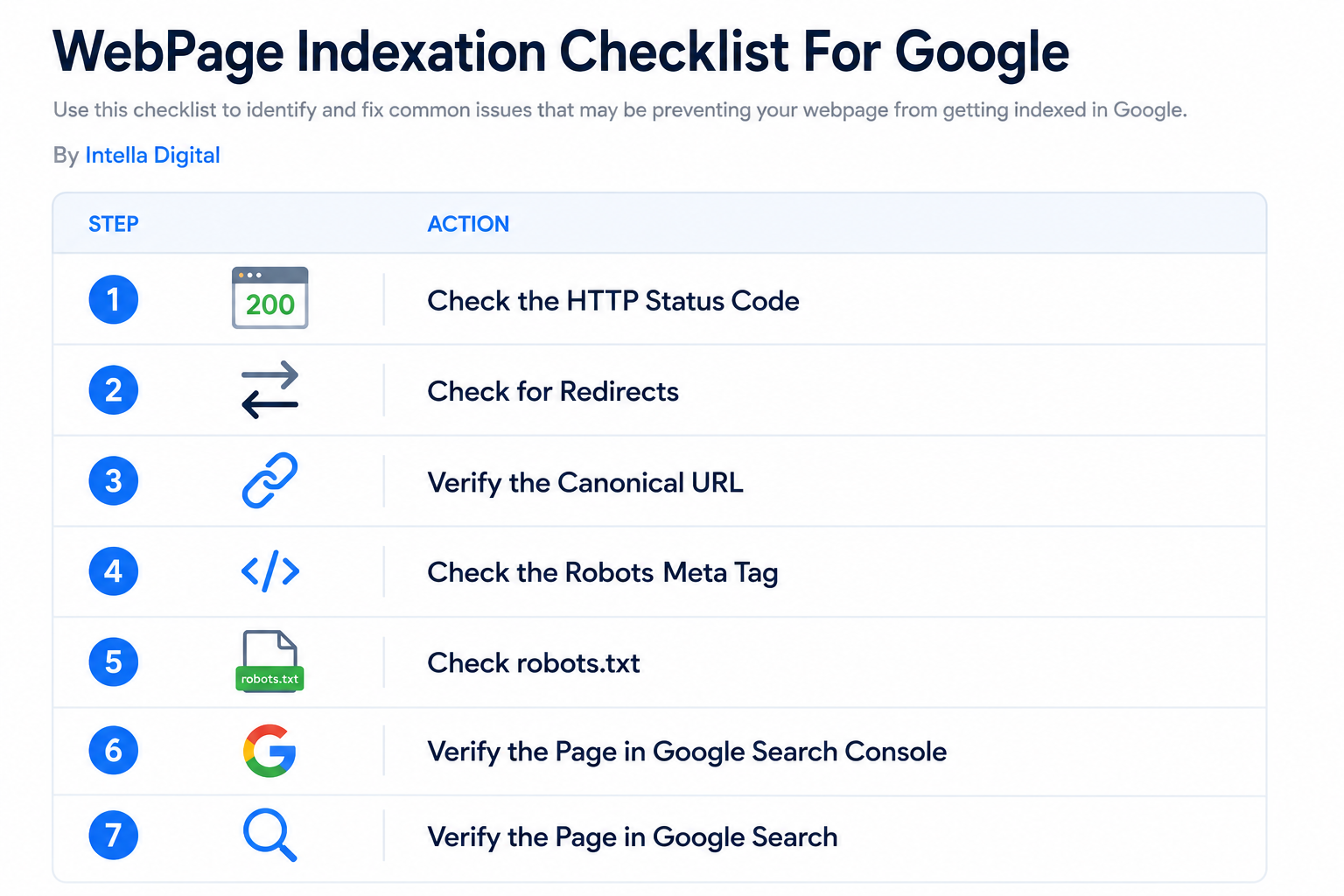
1. Check the HTTP Status Code
Google can only index pages that return a 200 OK HTTP response.
If the page returns another status code, such as:
- 301 or 302 Redirect
- 404 Not Found
- 410 Gone
- 500 Internal Server Error
Google may be unable to index the page or may index a different URL instead.
Verify the page using your browser’s developer tools, command-line utilities, or an online HTTP status checker (e.g httpstatus.io) to ensure it returns a 200 OK response.
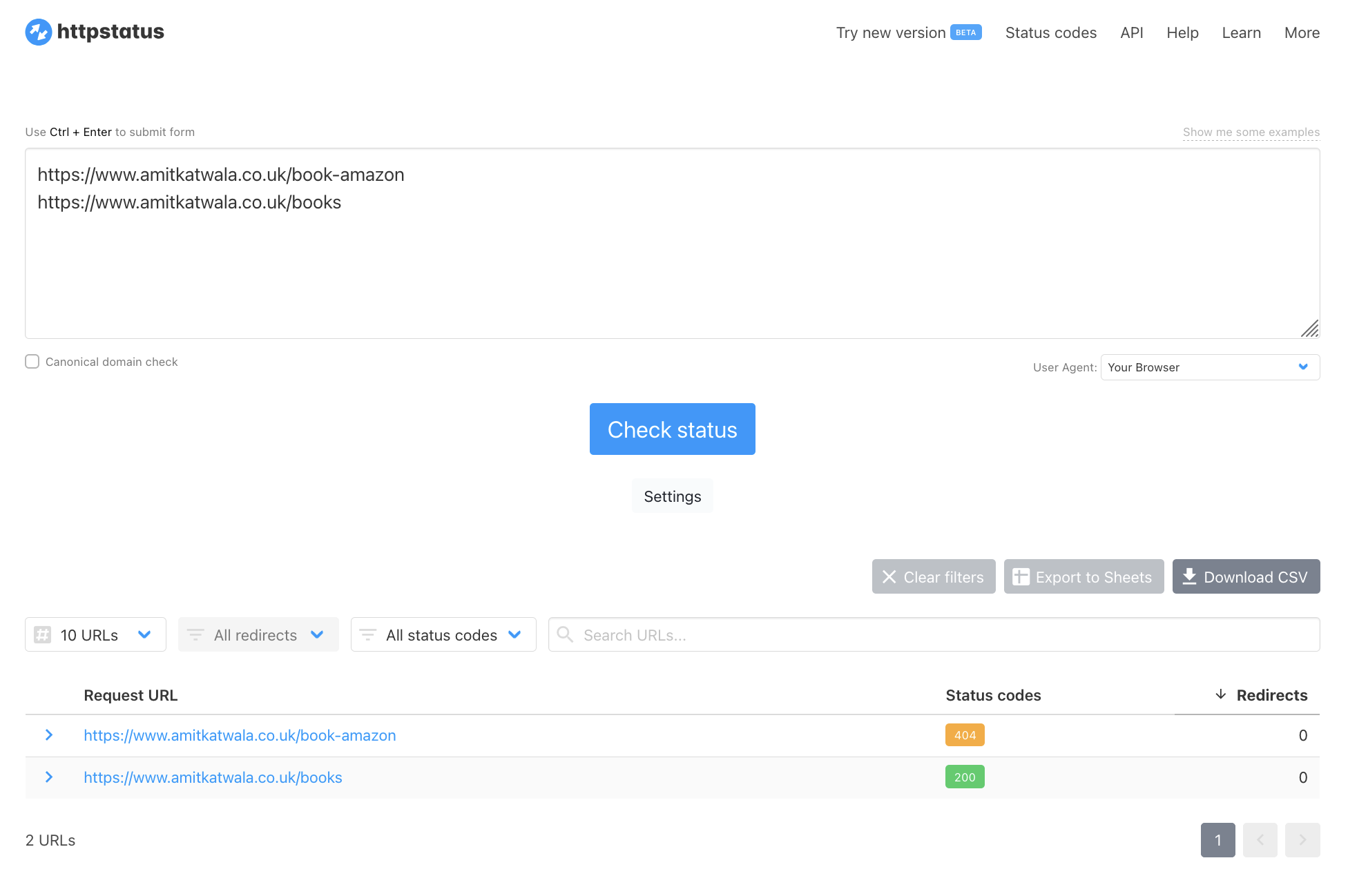
In the above example, the first URL returns a 404 status response while the second one returns a 200 OK status response. Hence, only the second URL will be indexed and the first URL will not be indexed.
If your webpage returns anything other than a 200 OK response, this is the root cause why the page is not getting indexed in Google and other search engines.
2. Check for Redirect Chains
A page that redirects multiple times before reaching its final destination can slow down crawling and may reduce the likelihood of successful indexation.
For example: Page A redirects to Page B which again redirects to Page C
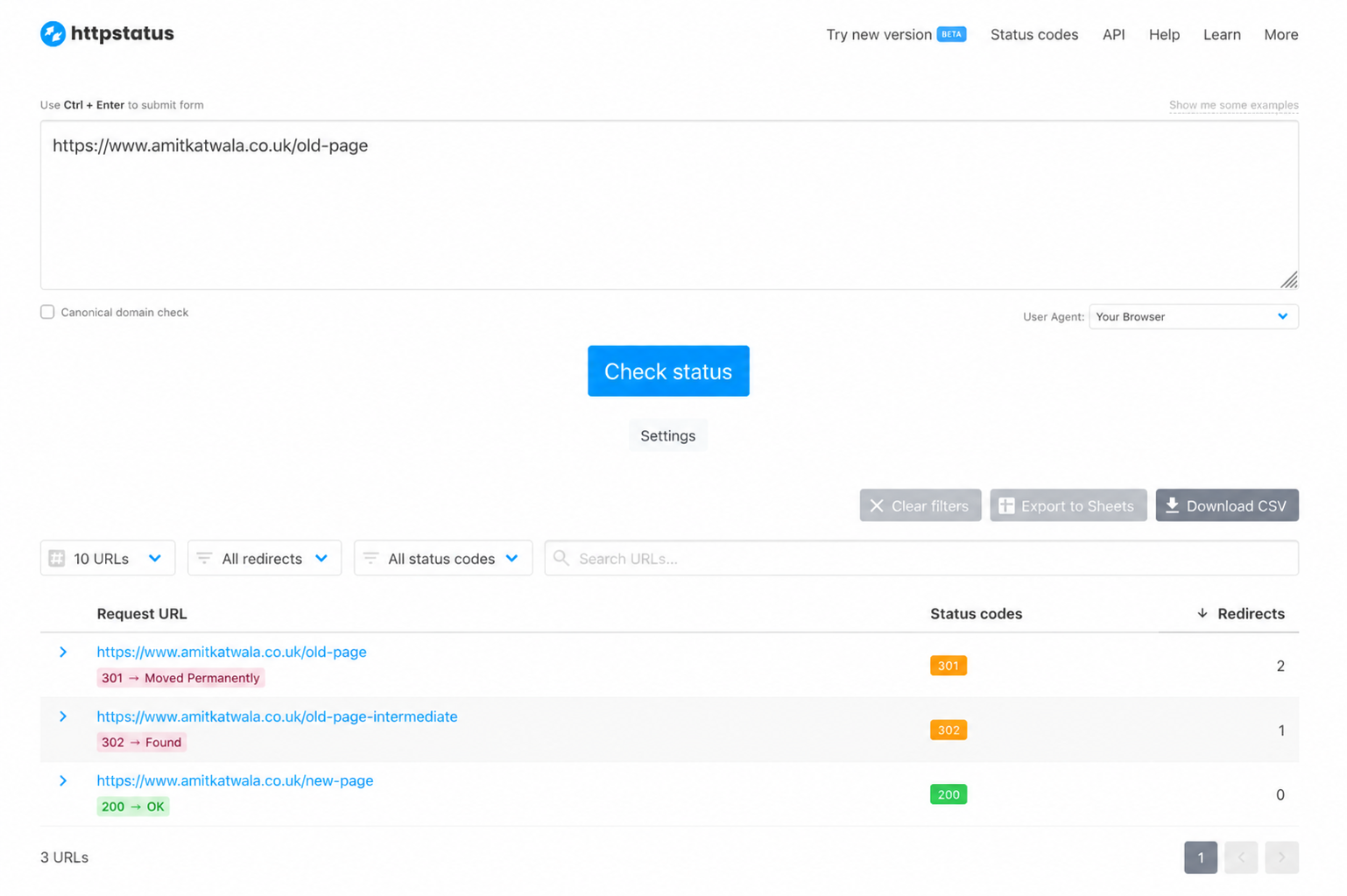
In the above situation, only the third URL will get indexed since only the third URL is returning a 200 OK status response. The first two URLs will most definitely not get indexed.
However, there is a catch. Because there is a redirect chain involved, it is entirely possible that search engines may choose to crawl the third URL that is returning a 200 ok response but they may choose not to index it and show it in search engine result pages.
It depends on a case by case basis but we have seen instances when a page which had a redirect chain was not indexed for a long time and was successfully indexed after the redirect chain was removed and the system was simplified.
Where possible, redirect users and search engines directly to the final destination rather than creating unnecessary redirect chains. Do not hyperlink to old URLs that redirect to new destinations, instead, redirect directly to the new destination to avoid creating unnecessary rediret loops or redirect chains which may hamper crawling or indexation of your website pages.
3. Verify the Canonical URL
The canonical URL tag tells Google which version of a page should be treated as the primary version meaning which version of the page should be considered the main copy and indexed and shown in Google search results.
If your page contains a canonical tag pointing to another URL, Google may choose to index that other page instead.
Verify that:
- The canonical URL references the current page when appropriate.
- The canonical tag hasn’t been configured incorrectly.
- Canonical URLs are consistent throughout the website.
4. Check the Robots Meta Tag
Pages containing the following directive will not be indexed:
<meta name="robots" content="noindex">Ensure the page either has no robots meta tag or uses directives that allow indexing.
It’s surprisingly common for pages to retain noindex directives after development or staging environments are migrated to production.
5. Check Robots.txt
Although robots.txt doesn’t directly prevent indexing in every situation, it can prevent Googlebot from crawling a page.
Review your robots.txt file to confirm that the page or directory hasn’t been unintentionally blocked.
For example:
User-agent: *
Disallow: /blog/
Blocking important sections of your website may prevent Google from accessing pages that should be indexed.
6. Verify the Page in Google Search Console
Review the page within Google Search Console to identify any indexing-related messages, such as:
- Crawled – currently not indexed
- Discovered – currently not indexed
- Duplicate without user-selected canonical
- Alternate page with proper canonical tag
- Excluded by noindex tag
- Soft 404
These messages often point directly to the issue that needs to be resolved.
7. Verify the Page in Google Search
Finally, perform another search using the site: operator.
Sometimes Google indexes a page under a slightly different URL variation, particularly when parameters, trailing slashes, or HTTP/HTTPS versions exist.
Confirm that you’re checking the exact URL you expect Google to index.
What to Do If the Page Is Still Not Indexed
If you’ve completed the checklist and the page still hasn’t been indexed, there are several additional steps you can take to improve its chances of being discovered and indexed by Google.
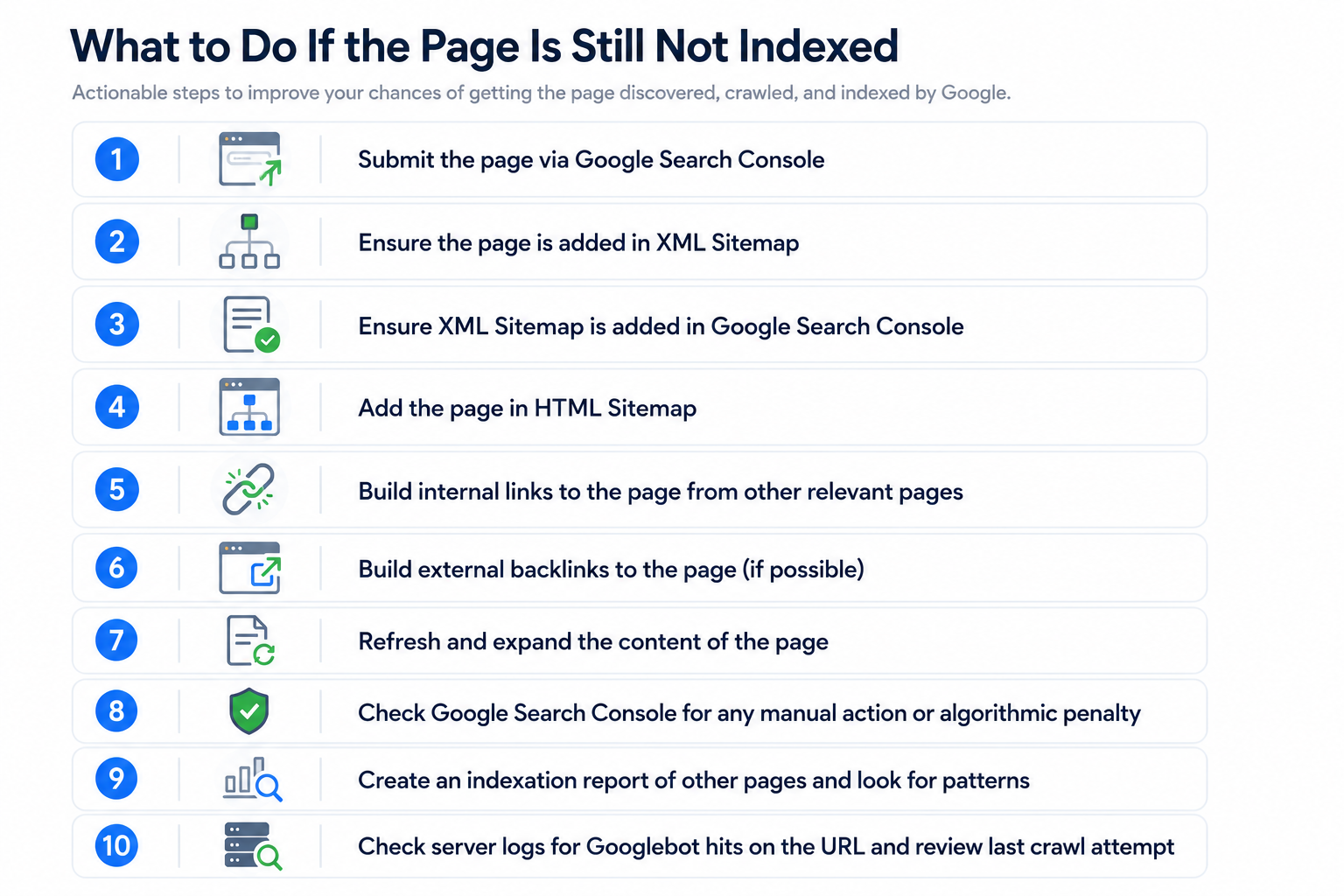
Step 1 – Submit the Page in Google Search Console
Use the URL Inspection Tool to request indexing after resolving any technical issues. While this doesn’t guarantee immediate indexation, it encourages Google to revisit the page sooner.
Step 2 – Ensure the Page Is Included in Your XML Sitemap
Your XML sitemap helps search engines discover important pages on your website. Verify that the page has been included and that the sitemap reflects the latest version of your content.
Step 3 – Confirm Your XML Sitemap Has Been Submitted
Check that your XML sitemap has been submitted successfully in Google Search Console and that Google isn’t reporting any sitemap errors.
Step 4 – Add the Page to Your HTML Sitemap
If your website uses an HTML sitemap, include the page there as well. This creates another crawl path for search engines and users.
Step 5 – Build Internal Links
A page with no internal links can be difficult for Google to discover.
Link to the page naturally from relevant blog posts, category pages, service pages, or other authoritative pages on your website.
Step 6 – Earn External Backlinks
If appropriate, obtain a few quality backlinks from relevant websites. External links help Google discover pages and may encourage more frequent crawling.
Step 7 – Refresh and Expand the Content
Pages containing thin, outdated, or low-value content are less likely to be prioritised for indexing.
Updating the content with additional information, improved structure, and greater depth can sometimes encourage Google to crawl and index the page.
Step 8 – Check for Manual Actions
Review Google Search Console to ensure your website isn’t affected by manual actions or significant indexing issues that could be preventing pages from appearing in search results.
Step 9 – Review Indexation Across Your Website
Instead of focusing on a single page, generate an indexation report for your website.
If many recently published pages remain unindexed, there may be a broader technical or quality issue affecting your website.
Look for patterns such as:
- Recently published pages not being indexed.
- Pages within specific directories being excluded.
- Certain content types consistently remaining unindexed.
Step 10 – Analyse Googlebot Crawl Activity
If server logs are available, review Googlebot activity for the affected URL.
This helps determine:
- Whether Google has crawled the page.
- When it was last visited.
- Whether Googlebot encountered server errors or redirects during the crawl.
Server log analysis often provides valuable insights when troubleshooting persistent indexing problems.
Conclusion
A page that isn’t getting indexed doesn’t necessarily indicate a serious problem. In many cases, the cause is a straightforward technical issue, such as an incorrect canonical tag, a blocking robots directive, a redirect, or a page that simply hasn’t been discovered yet.
By following a structured troubleshooting process, you can identify the most common causes of indexing problems and resolve them before they impact your website’s visibility in search results.
If a page remains unindexed after completing these checks, take a broader view of your website’s overall indexation. Reviewing crawl activity, internal linking, sitemap coverage, and content quality can often reveal patterns that explain why Google isn’t indexing certain pages. A systematic approach will not only improve the chances of getting an individual page indexed but also strengthen the long-term crawlability and search performance of your entire website.
